Open a GPX file and import it as a route in oratrek
A route from your club, a route planner or friends sitting on your phone as a GPX file? With oratrek, you open it straight from the Files app and then navigate along it. With offline maps, you don't need mobile coverage on the road.
Two ways to get your route in
You can bring a GPX file into oratrek in two ways:
- With “Open with”: tap the file in the Files app, in your Download folder or in an email attachment and choose oratrek.
- Inside the app: start the import in oratrek and pick the file there.
The result is the same: the route shows up under “Saved Routes”, and you can select it for navigation.
Import a GPX file with “Open with”
- Open the GPX file, for example in the “Files” app in the “Download” folder.
- Android asks which app to open it with. Choose “oratrek” and tap “Just once” or “Always”.
- oratrek opens the “Import Route” screen and imports the route right away. There's nothing else to confirm.
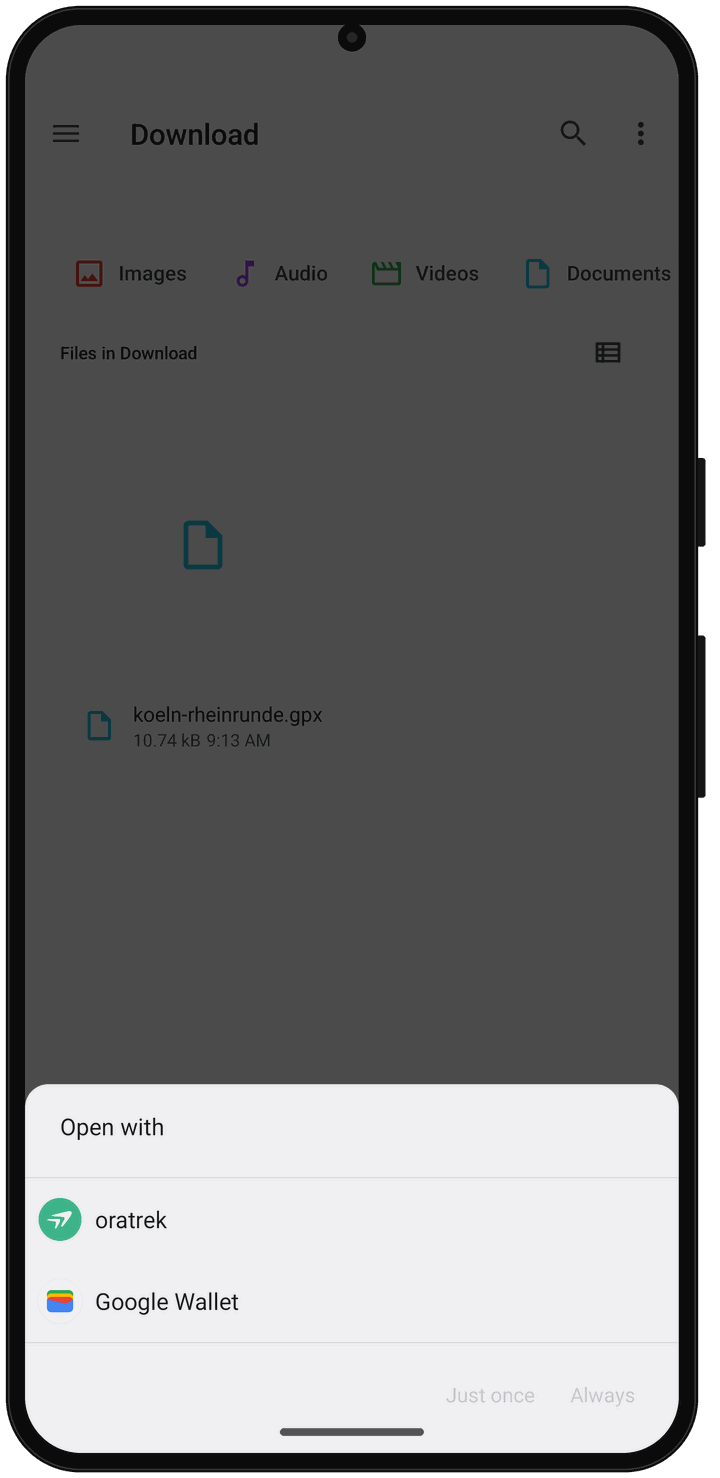
Once you've chosen oratrek, Android remembers it and offers oratrek at the top next time. You can still pick a different app from the same sheet.
After a few seconds, you'll see “Route imported successfully”, and oratrek shows “Saved Routes” with your new route, its length and the number of turns. oratrek takes the route name from the track name in the file, or else from the file name.
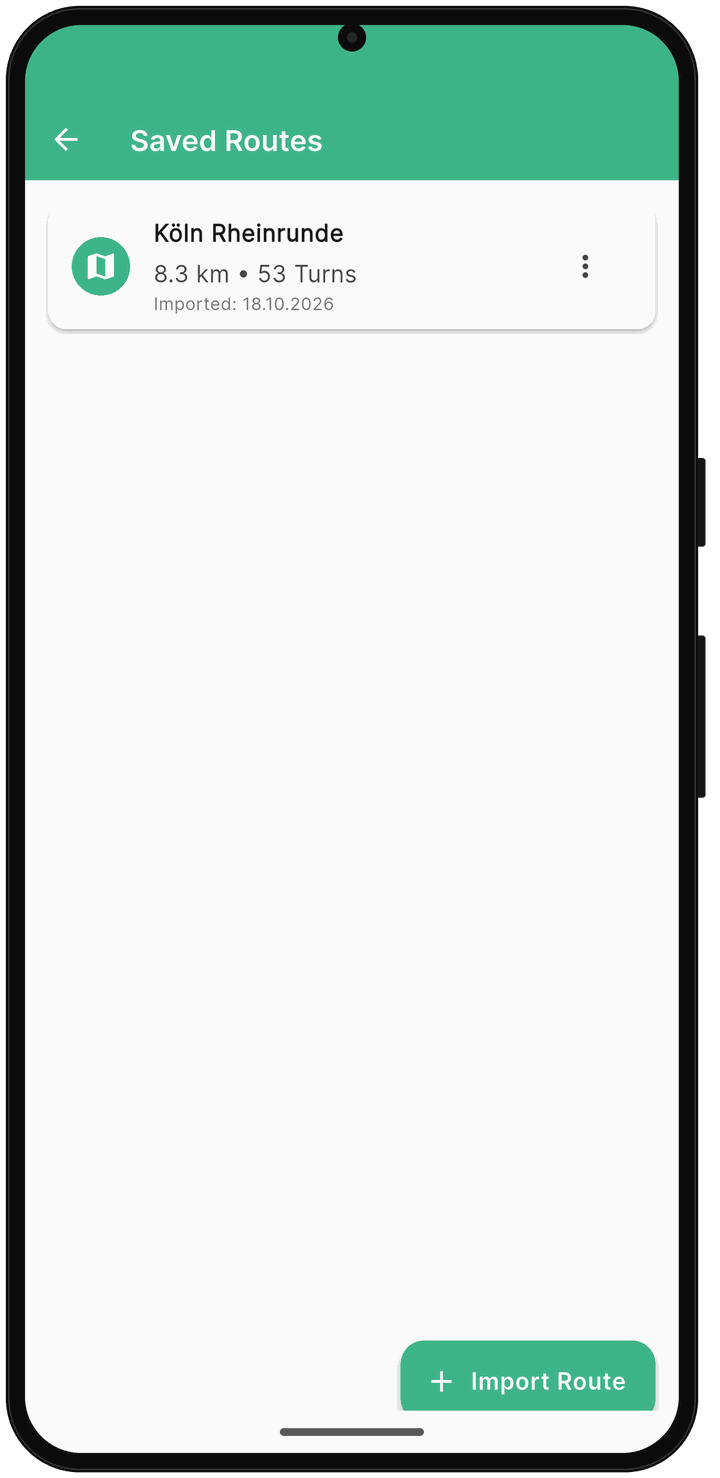
The length can differ slightly from what your route planner shows, because oratrek matches the route to roads and paths during the import.
Pick a GPX file inside the app
If the file is already on your phone, you can also start in oratrek:
- On the “Home” tab, tap “Import Route”.
- Tap “Select GPX File” and choose the file.
The file doesn't have to end in .gpx. oratrek checks the content to tell whether it's a GPX file.
Route with the same name
If a route with the same name already exists, oratrek asks: “Route already exists”. “Overwrite” replaces the old route; “Cancel” leaves everything as it was.
If the import doesn't work
oratrek tells you what went wrong in a message. The most common reasons:
- No internet connection: start the import again once you're back online.
- Not a valid GPX file: the file is, for example, a web page or a different format. Export the route from your route planner as GPX again.
- Fewer than two points: the file contains no track or route, only single waypoints, for example.
- Route can't be matched to roads: check that the route is inside the map area.
- File can't be read: this sometimes happens with files shared directly from another app. Save the file to your phone first, then import it via “Import Route”.
Navigate your route
On the “Tracking” tab, tap the gear icon at the top right, then “Tracking Settings” and “Navigation and Routes”. Your imported route is under “Select route”.
To make sure you don't miss a turn without keeping the screen on all the time, oratrek can wake the screen before every turn. For a step-by-step guide to preparing and riding your route, see How to Ride a GPX Route with oratrek.