Navigating with the screen off: why oratrek needs “Display over other apps”
Phone locked in your pocket or on the handlebar, screen off, battery saved – and still no missed turn. To show the map instead of the lock screen, oratrek needs one extra permission.
What “Wake screen on turn” does
When you navigate with oratrek, the screen doesn't have to stay on all the time. With the “Wake screen on turn” setting, it turns on by itself 200 m before every turn and shows you the map with the turn cue until you're just past the turn. Then it switches off again. You see where to go in time and save battery between turns.
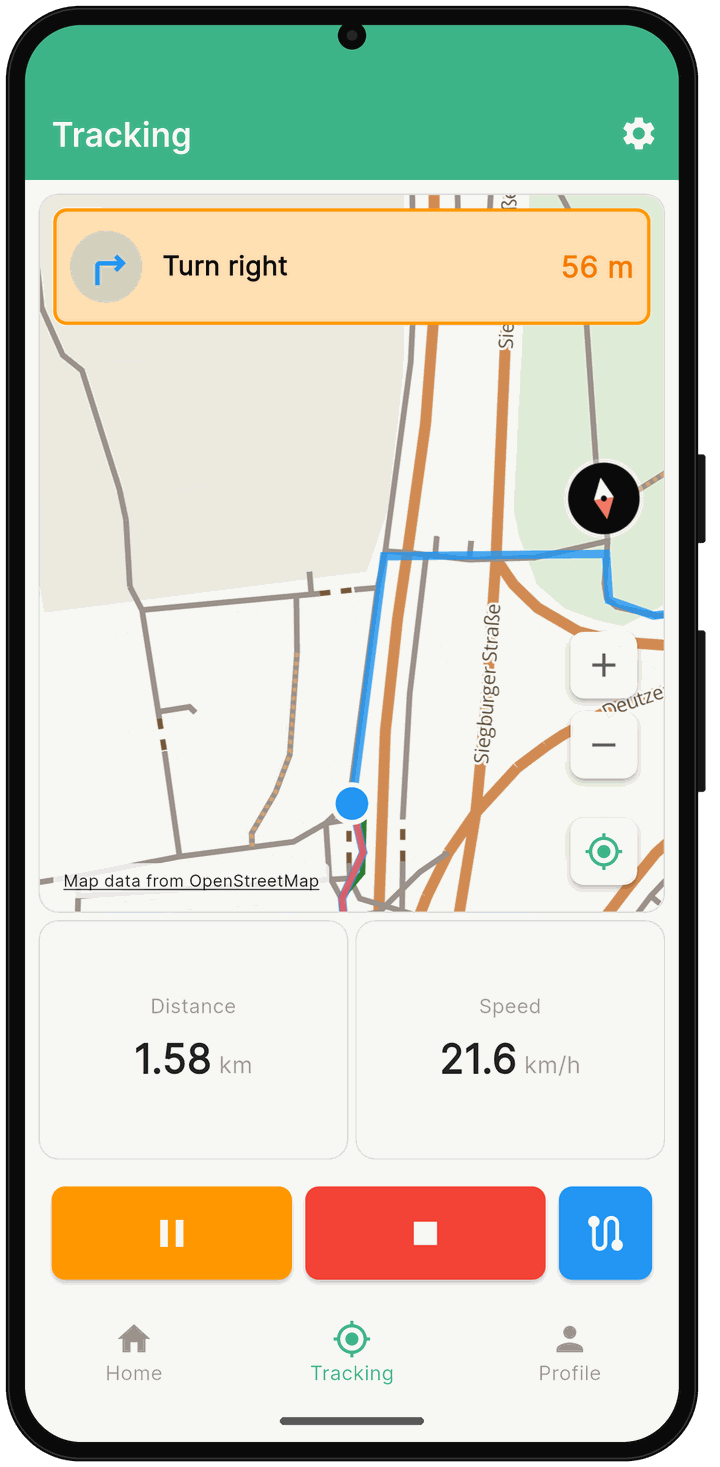
The problem: lock screen instead of map
As long as oratrek is open, this just works. Often, though, the app is in the background or you've swiped it away – recording keeps running anyway. In that case, the phone only shows the lock screen at the turn.
- Samsung and Xiaomi switch the screen off again after 5–10 seconds, often before you reach the turn.
- Other phones, such as Pixel, keep the screen on but only show the lock screen instead of the map.
The fix: “Display over other apps”
With the “Display over other apps” permission, oratrek may bring the map over the lock screen at a turn. The screen then stays on until the turn, on Samsung and Xiaomi too.
- oratrek doesn't draw anything over other apps or place windows on top of them.
- oratrek doesn't read anything.
- The permission is only used at a turn, to bring the app to the front.
- After the turn, oratrek goes back to the background. When you unlock your phone, you see the app that was open before.
- The permission is optional. Without it, everything works as before.
How to set it up (Android 11 and newer)
- In oratrek, open the “Tracking” tab, tap the gear icon at the top right, then “Tracking Settings” and “Navigation and Routes”. Turn on “Wake screen on turn”.
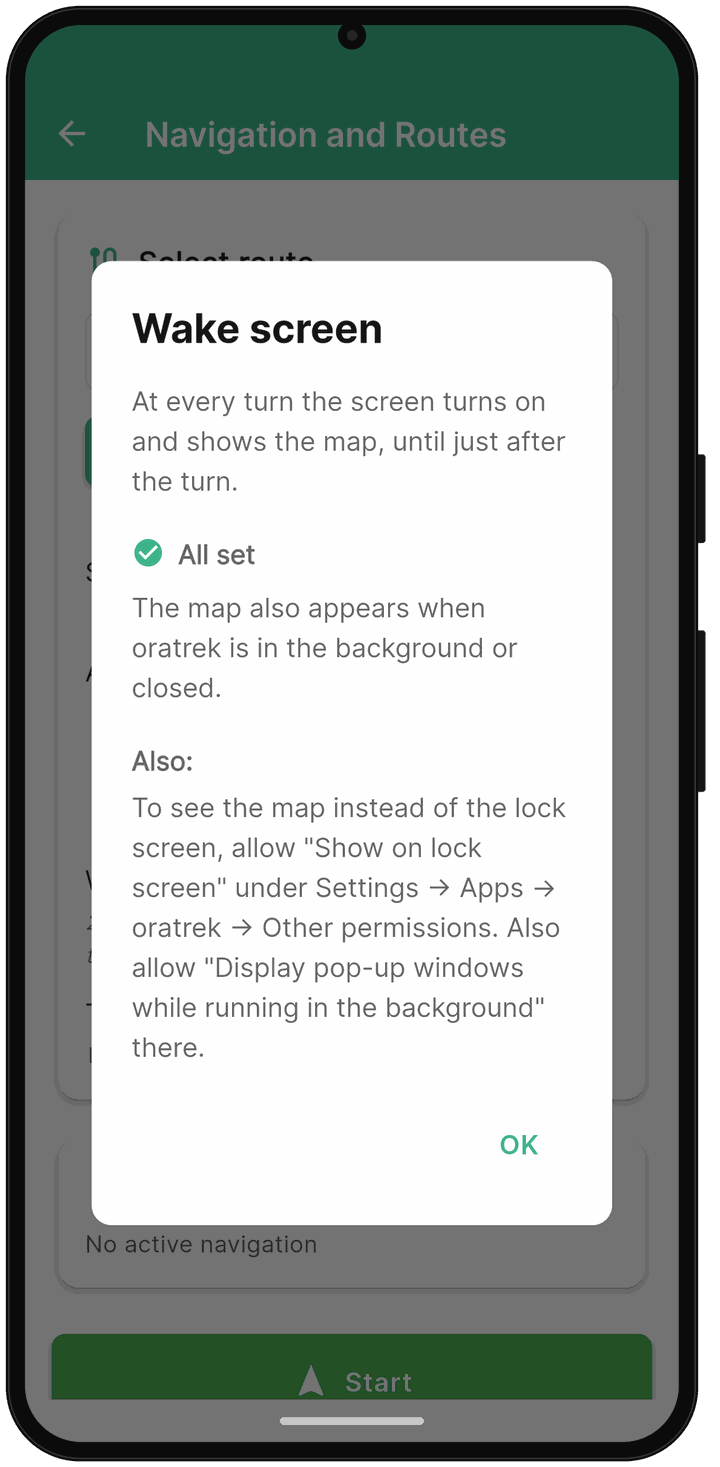
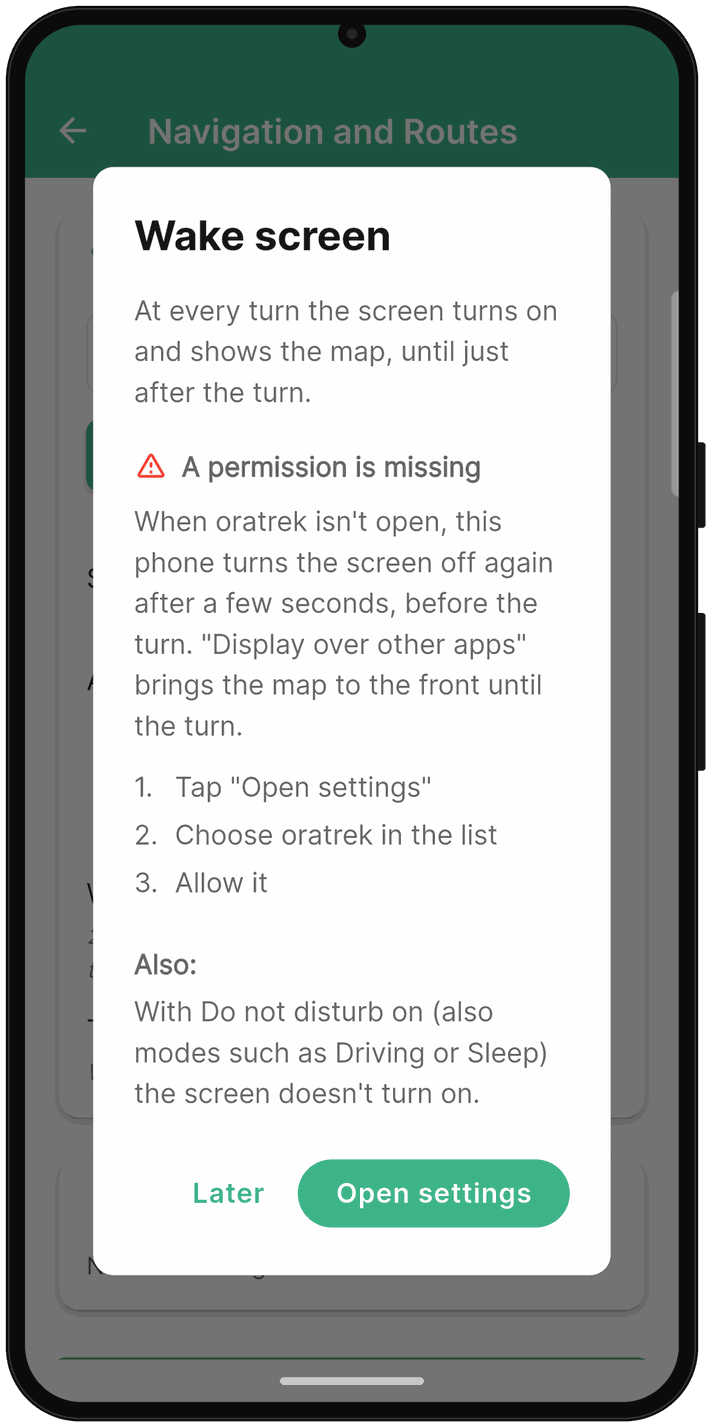
- The “Wake screen” dialog opens. If the permission is missing, it says “A permission is missing” on Samsung and Xiaomi and “Optional: the map instead of the lock screen” on other phones. Tap “Open settings”.
- In the “Display over other apps” list, select “oratrek”.
- Turn on “Allow display over other apps” and go back to the app. The dialog now says “All set”.
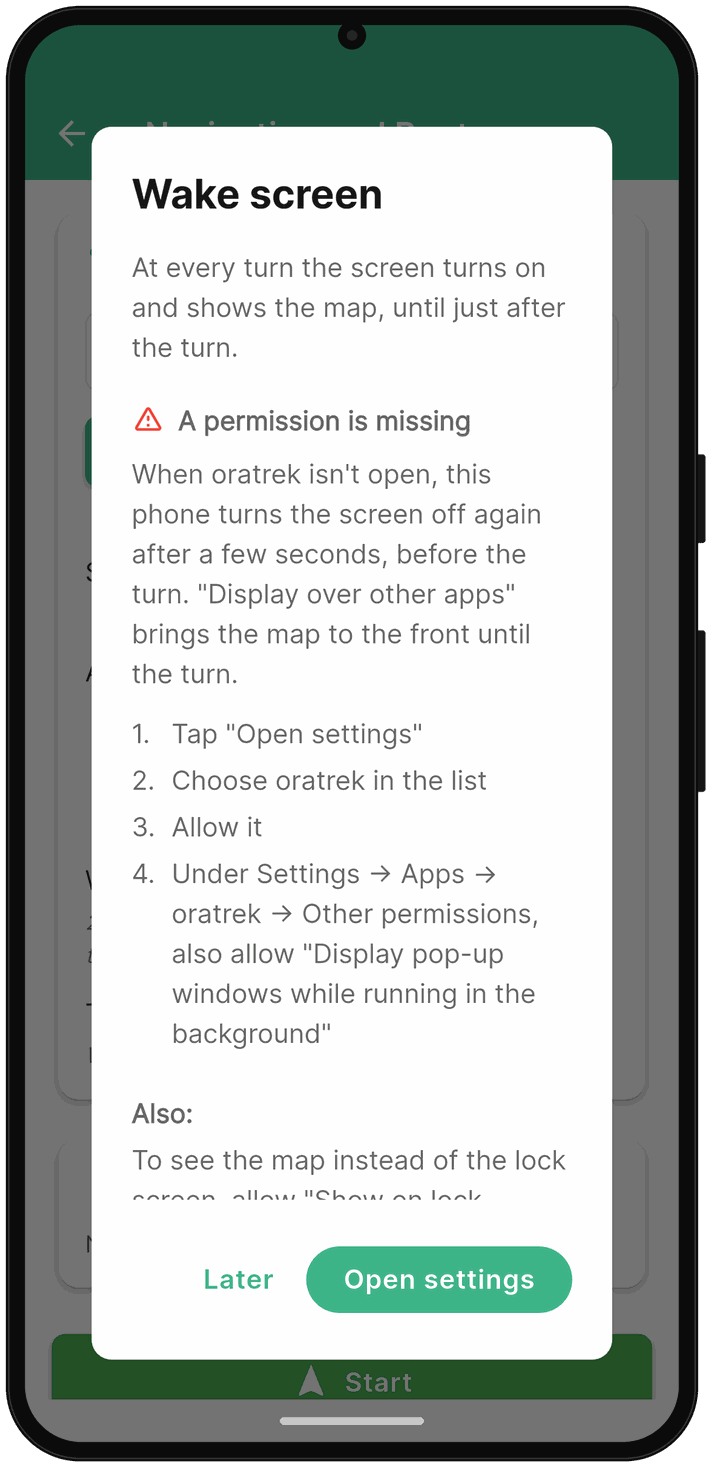
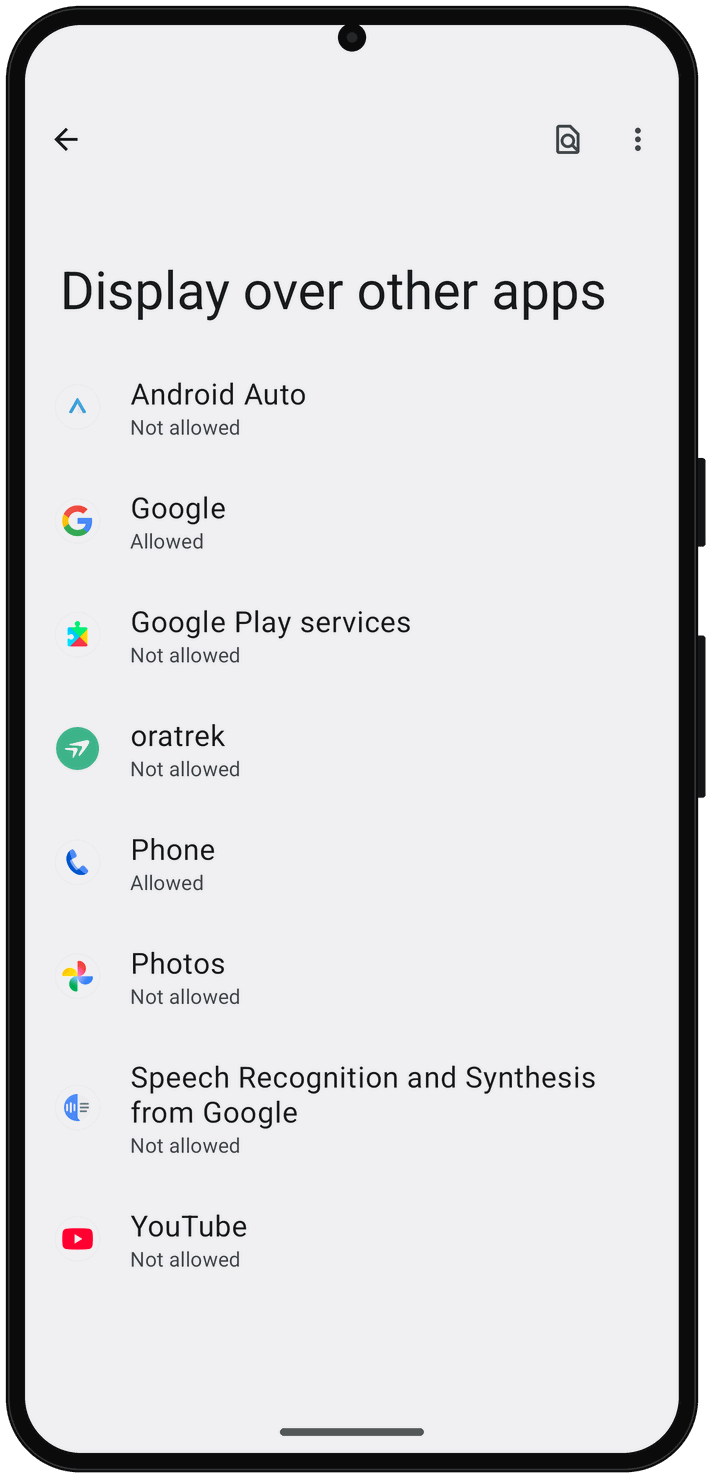
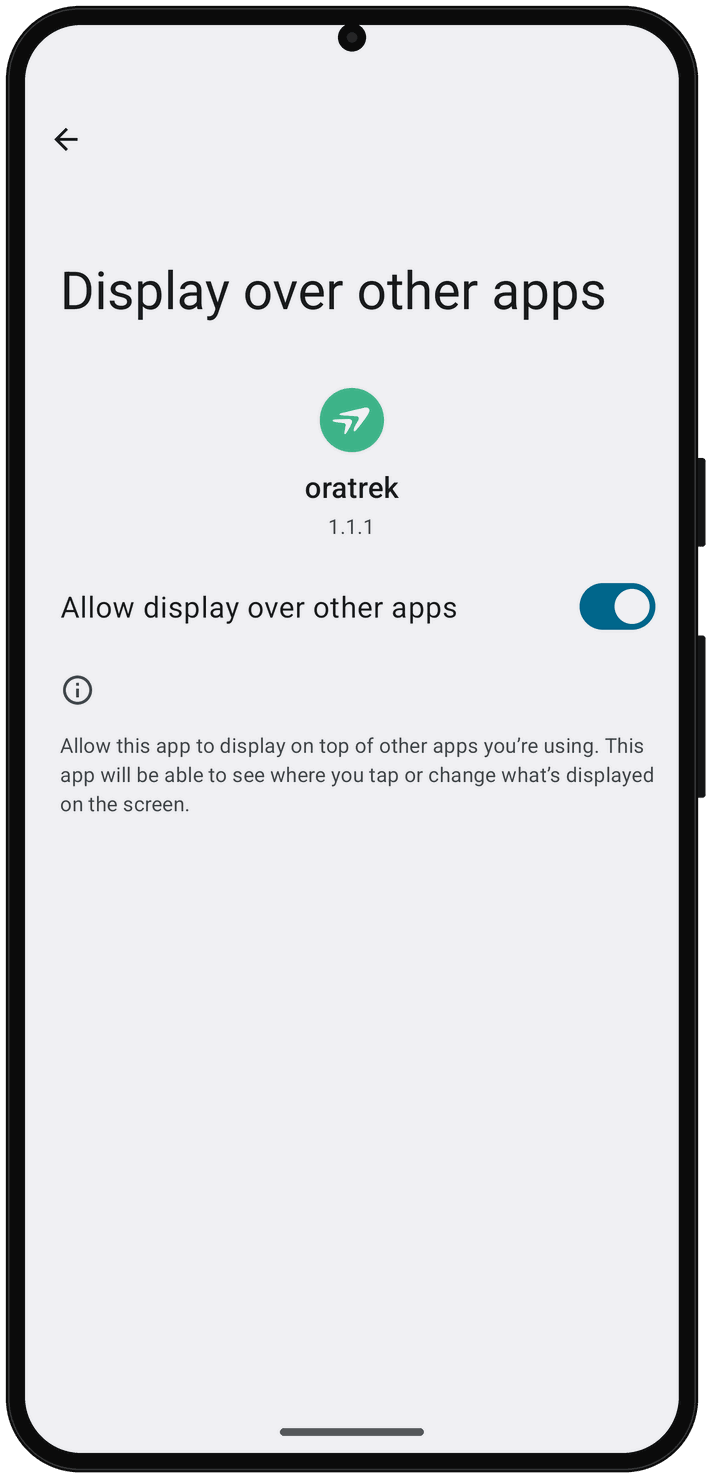
Straight from the system settings
You can also grant the permission without going through the app. The menu names vary a little by manufacturer.
Pixel and stock Android
Settings → Apps → Special app access → Display over other apps → oratrek → “Allow display over other apps”. It's quicker to search the settings for “other apps”.
Samsung (One UI)
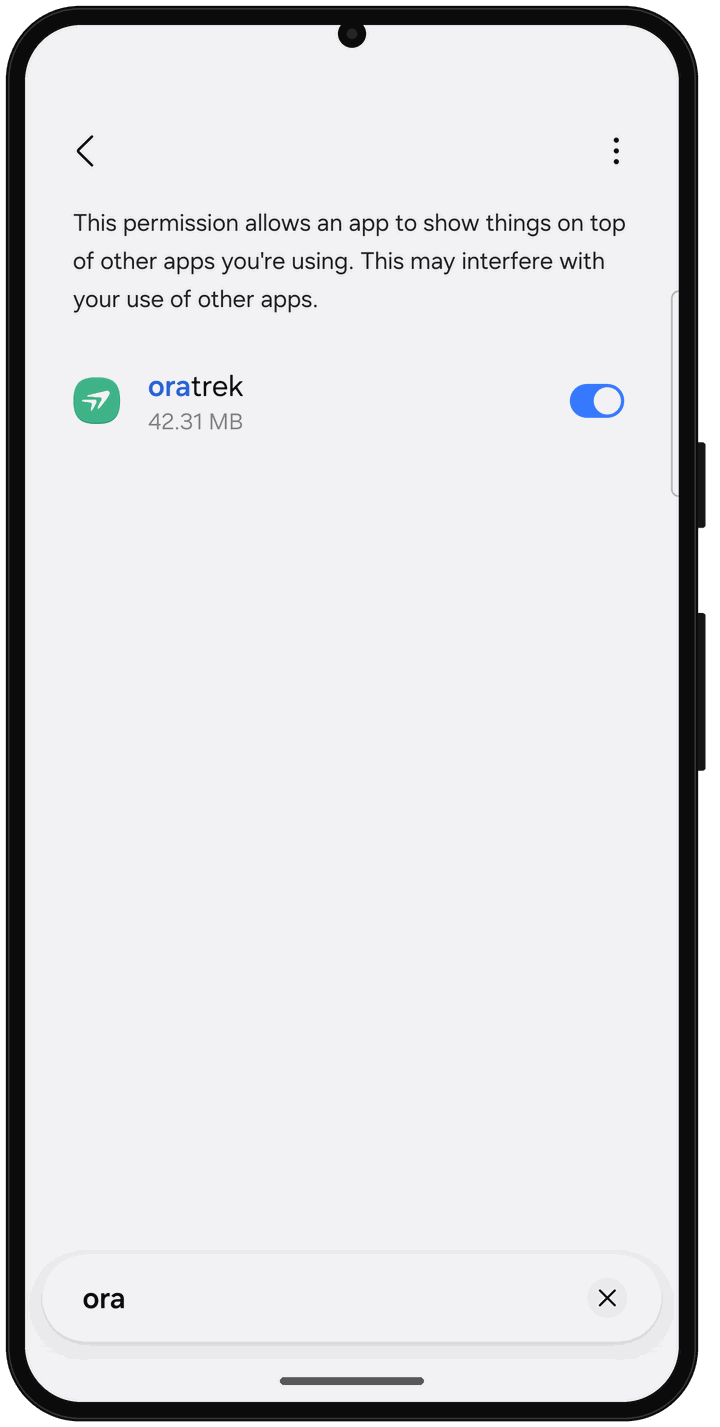
On Samsung, the permission is called “Appear on top”. It's the same permission as “Display over other apps”. “Open settings” in oratrek takes you straight to this list. There, each app has its own switch: just turn on the switch next to oratrek, and steps 3 and 4 are done.
To find it directly in the settings:
- Settings → Apps → ⋮ → Special access → Appear on top → turn on the switch for oratrek
- or Settings → Apps → oratrek → “Appear on top” (near the bottom, after “Storage”) → “Allow permission”
- or search the settings for “other apps”
Xiaomi, Redmi and POCO (MIUI)
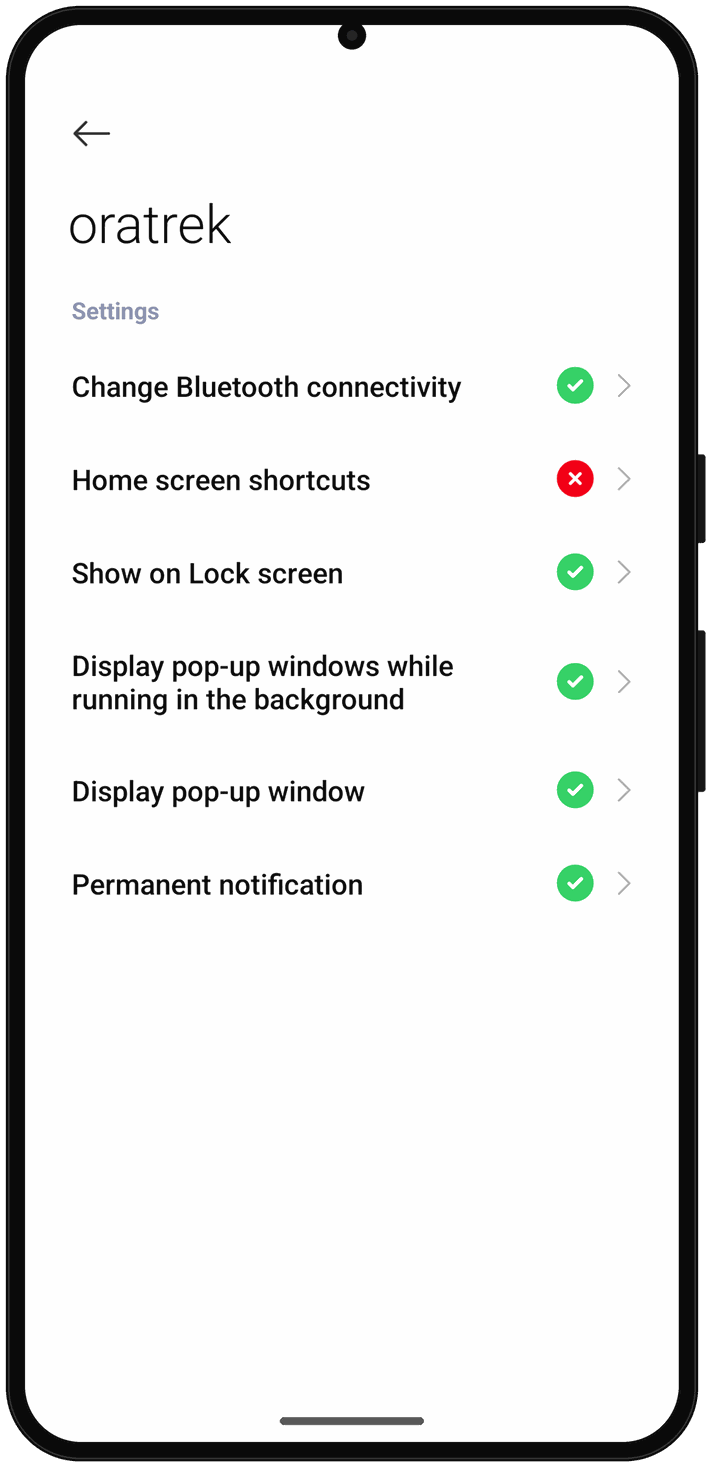
Open Settings → Apps → Manage apps → oratrek → Other permissions and set these three entries to “Always allow”:
- “Display pop-up window” – MIUI's name for “Display over other apps”
- “Display pop-up windows while running in the background”
- “Show on Lock screen” – otherwise you'll see the lock screen instead of the map
Good to know
- Samsung and Do not disturb: If Do not disturb is on – including through modes such as “Driving” or “Sleep” – the screen doesn't turn on at all. This is a Samsung rule that oratrek can't work around. You'll find the setting under Settings → Notifications → Do not disturb, and the modes under Settings → Modes and Routines.
- Tapping the map: If you tap the map while the screen is awake, it stays on until your phone's normal screen timeout runs out.
- App not installed from the Play Store: Since Android 15, the toggle may be grayed out. Fix: App info → ⋮ → “Allow restricted settings”.
For more ways to save battery on long rides, see our battery tips for long activities.